
Installation
Bootstrap a new project, start from scratch, or migrate an existing project.
Bootstrap Project
Run the init command, and follow the instructions.
sh
bunx wxt@latest initsh
pnpm dlx wxt@latest initsh
npx wxt@latest initsh
# Use NPM initially, but select Yarn when prompted
npx wxt@latest init
Starter Templates:
 Vanilla
 Vue
Vue React
React Svelte
 Solid
SolidAll templates use TypeScript by default. To use JavaScript, change the file extensions.
More starters made by the community are listed under Community, Starter Templates.
Demo
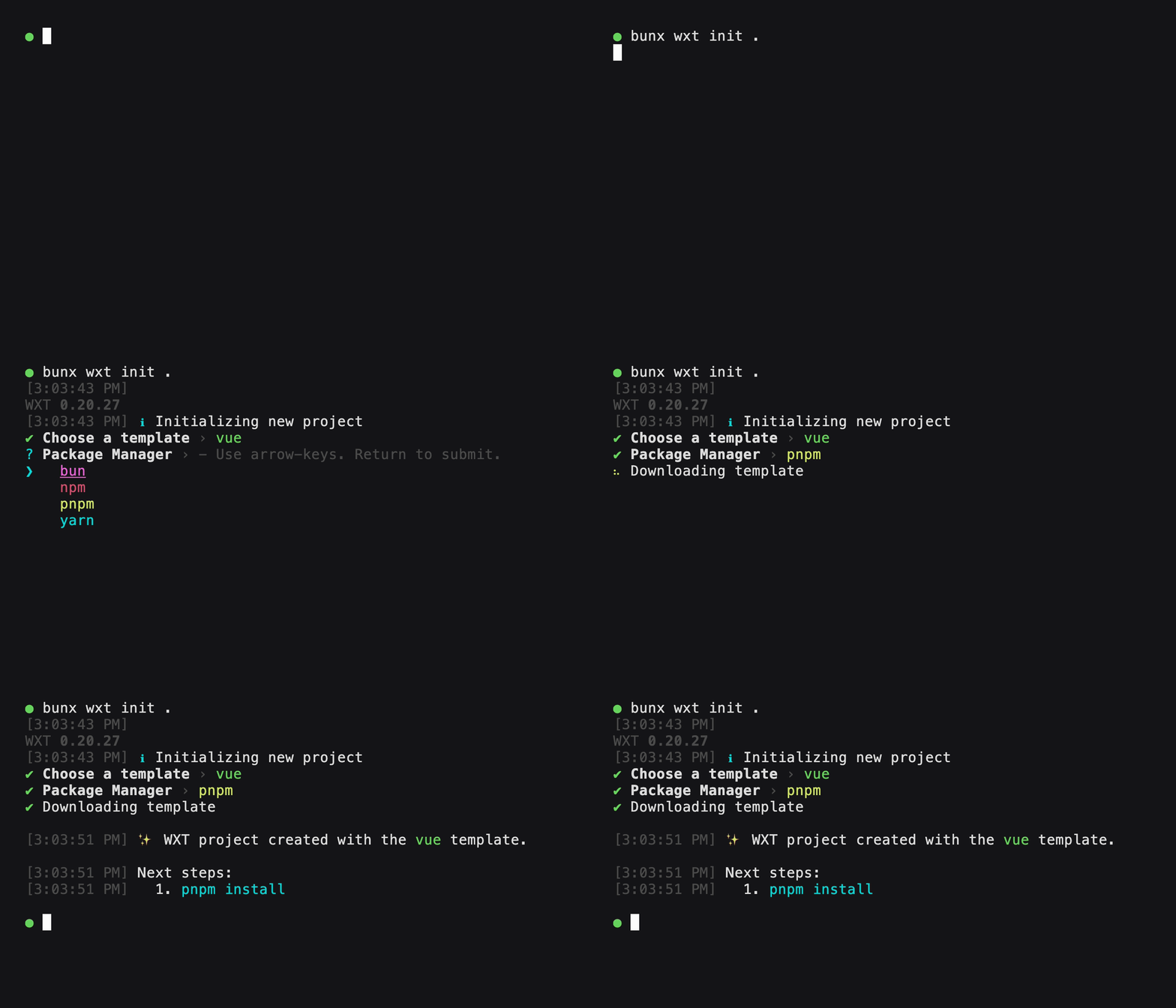
Once you've run the dev command, continue to Next Steps!
From Scratch
Create a new project
shcd my-project bun initshcd my-project pnpm initshcd my-project npm initshcd my-project yarn initInstall WXT:
shbun add -D wxtshpnpm i -D wxtshnpm i -D wxtshyarn add --dev wxtAdd an entrypoint,
my-project/entrypoints/background.ts:tsexport default defineBackground(() => { console.log('Hello world!'); });Add scripts to your
package.json:json{ "scripts": { "dev": "wxt", "dev:firefox": "wxt -b firefox", "build": "wxt build", "build:firefox": "wxt build -b firefox", "zip": "wxt zip", "zip:firefox": "wxt zip -b firefox", "postinstall": "wxt prepare" } }Run your extension in dev mode
shbun run devshpnpm devshnpm run devshyarn devWXT will automatically open a browser window with your extension installed.
Next Steps
- Keep reading on about WXT's Project Structure and other essential concepts to learn
- Configure automatic browser startup during dev mode
- Explore WXT's example library to see how to use specific APIs or perform common tasks
- Checkout the community page for a list of resources made by the community!